How to Use a Brat Generator — What It Is & How to Make Brat Text
A brat generator is a free tool in your browser that turns short typed text into a lowercase, blurred, brat-style image. To use the BratGen Free brat generator, type one to four words, choose your text and background colours, adjust the blur and size, then download the image. No sign-up is needed, and the preview updates as you type.
Tip: press Enter in the text box for a new line. The brat look is stretched lowercase Arial with a slight blur, on brat green #8ACE00.
What Is a Brat Generator?
A brat generator makes the bold, flat-colour look associated with brat-style covers without needing design software or a font file. You type words, and the tool draws them in lowercase, in a heavy condensed style, on a plain background. The result is an image you can save and share, rather than editable text.
When I tried the tool on the BratGen Free homepage, the starting text was simply “brat”, with black text on a brat-green background. Clicking the “girl math” suggestion filled the text box at once, and the preview changed straight away to show those two words in the same style. That live preview is the main point: you can see each change before you save anything.
- It works in a modern desktop or mobile browser, with no account and no watermark.
- Your text is drawn in your own browser, so it is not uploaded.
- You can export PNG, JPEG or WebP, or copy the image to paste elsewhere.
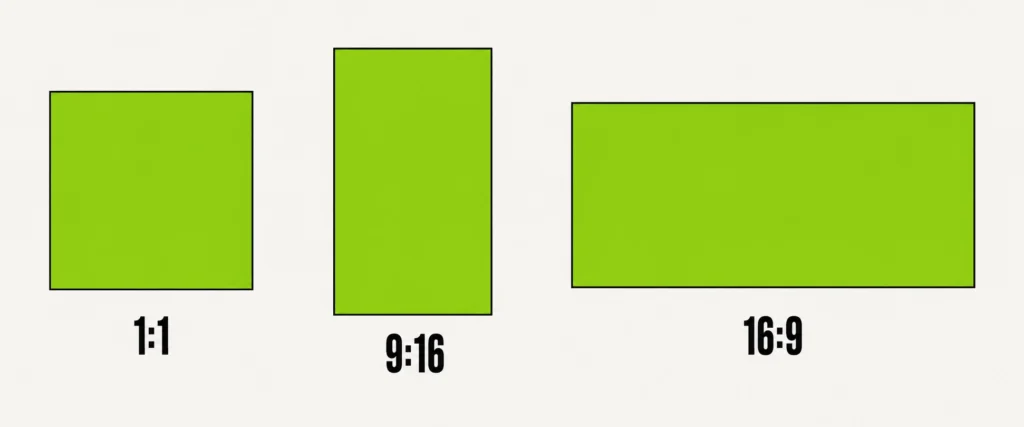
- Three shapes are offered: 1:1, 9:16 and 16:9.
How to Use a Brat Generator
Follow the steps below in order. Each choice shows in the preview, so check the image after every step and change anything that does not read clearly.
- Type your text. Keep it to one to four short words. Longer text shrinks to fit and loses impact, so split a longer line into separate images if needed.
- Pick a text colour. Start with black on brat green for the classic high-contrast look, or choose white, blue, brat green, or a custom hex code.
- Pick a background colour. Use brat green for the familiar look, or white, black or blue for a different mood. Keep strong contrast between the text and the background.
- Set the blur. Use the blur slider to soften the edges. The default I saw was 3, and 0 gives a sharp image; lower the value until the words still read clearly.
- Choose a shape and export size. Use 1:1 for feed posts, 9:16 for stories and vertical covers, and 16:9 for thumbnails. The default export size was 1080 × 1080 px for the square shape.
- Download or copy the image. Choose Download PNG, Download JPEG or Download WebP, or use Copy image to paste it into a chat, note or document.
Choosing Colours, Blur and Size
Colours
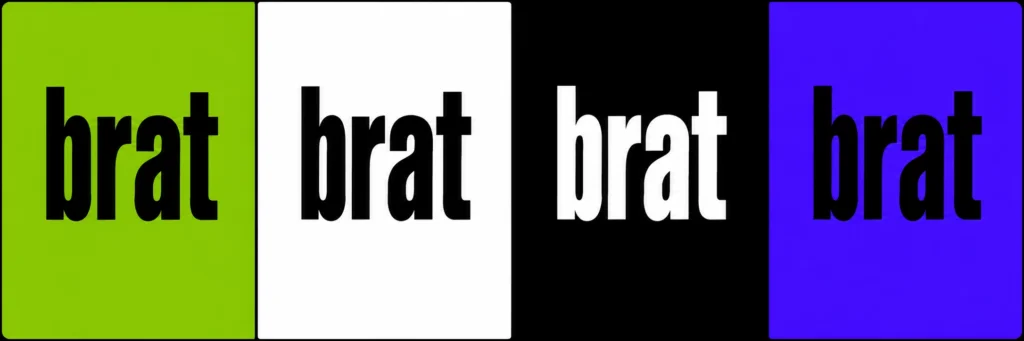
Colour does most of the work in this style, because the background is flat and the text fills most of the frame. The presets I saw were brat green, white, black and blue, for both text and background, with a custom hex box for each. Black text on brat green (#8ACE00) gives the strongest, most familiar contrast.
For a lighter background, read the brat generator white text guide, and for the exact green used here, see the brat green hex code page.
Blur
Blur is what makes the text look soft and low-resolution rather than crisp like ordinary typed text. A small amount keeps the brat feel; too much turns letters into smudges. If you need a clean title for a slide, set the blur to 0 and judge the result in the preview before exporting.
Shape and export size
Choose the shape before you fine-tune the text, so nothing is cropped later. Square images suit feed posts and profile pictures, vertical images suit stories and TikTok covers, and widescreen images suit thumbnails. Export at 1080 px or more where you can, because platforms recompress uploads and a small export can look soft for the wrong reason.
Tips for a Clearer Brat Image
- Stay in lowercase, or let the tool convert your text; uppercase breaks the look.
- Use one to four words, with the most important word first if the text wraps.
- Check contrast at a small size, as an image that reads well large can fail as a thumbnail.
- Compare blur 0 with the default setting, and pick the softer one only if the words stay easy to read.
- Download the largest size you need, then resize down if a platform asks for a smaller file.
Frequently Asked Questions
What is a brat generator?
A brat generator is a browser tool that turns typed words into a lowercase, blurred, brat-style image on a flat background, ready to download as PNG, JPEG or WebP.
What font is brat generator?
There is no official brat font file to install. The look is stretched, lowercase Arial with a low-resolution finish, and the generator applies that style for you. Learn more on the brat font page.
How to use a brat generator?
Type one to four words, pick your text and background colours, set the blur, choose a shape and export size, then download or copy the image. Check the live preview after each step.
Start With the Free Tool
Open the BratGen Free brat generator, type a short phrase, and make your first image in seconds. If you want to understand the lettering first, read the brat font guide, then try a lighter look with the white text guide or check the exact colour on the brat green hex code page.