Brat Text Generator — Free Charli XCX Style Text Maker
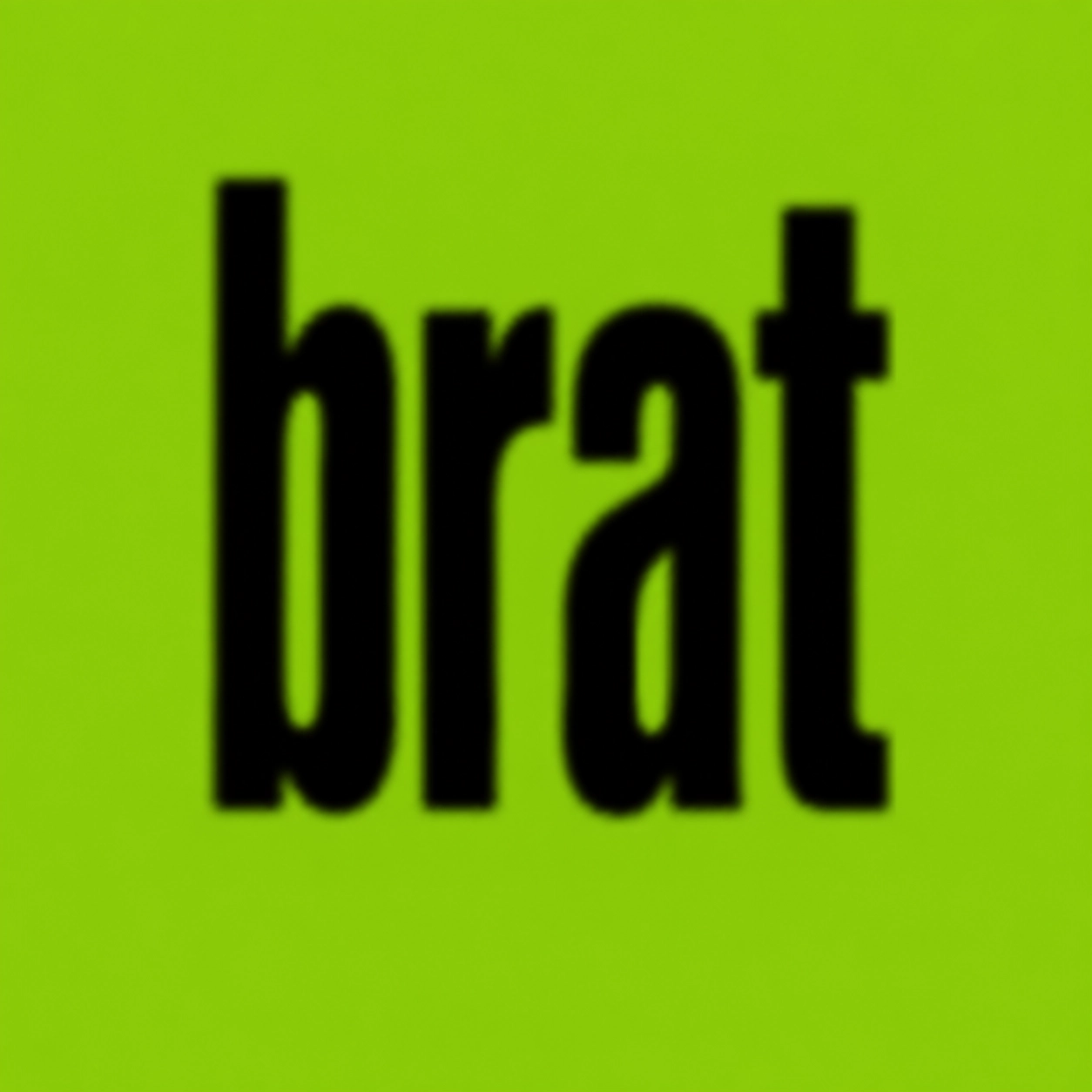
A brat text generator turns a short phrase you type into the stretched, lowercase, slightly softened text associated with the brat album cover style, usually on a bright green background. You type your words, choose the text and background colours, adjust the blur and shape, and then download the result as an image. On BratGen Free, the brat text generator is free to use in your browser, with no sign-up and no watermark.
Tip: press Enter in the text box for a new line. The brat look is stretched lowercase Arial with a slight blur, on brat green #8ACE00.
What Is a Brat Text Generator?
A brat text generator is a browser tool that recreates a very specific visual style without asking you to install a font or open design software. It takes ordinary lowercase text and stretches it, tightens the spacing, and softens the edges so the result looks low-resolution in the same way as the well-known cover. The background is normally brat green, the text is normally black, and the whole image stays simple: one phrase, one colour pairing, and very little else.
People use a brat text generator for profile pictures, cover-style images, memes, posters, and short social posts. The appeal is speed and consistency. You do not need to guess the stretch, the blur, or the colour, because the tool applies the same treatment each time. If you want a different mood, you can change the colours or the blur and make a new version in seconds, then keep the one that reads best at the size where it will be seen.
How to Use a Brat Text Generator
Using a brat text generator takes less than a minute once you know what phrase you want. Short phrases work best, because long sentences can become hard to read when the text is stretched and softened.
- Type your phrase in lowercase. Keep it short, ideally one to four words, and check the spelling before you export.
- Choose your text colour and background colour. Start with black text on brat green if you want the classic look.
- Set the blur. A little softness helps the text look low-resolution, but too much blur makes small words hard to read.
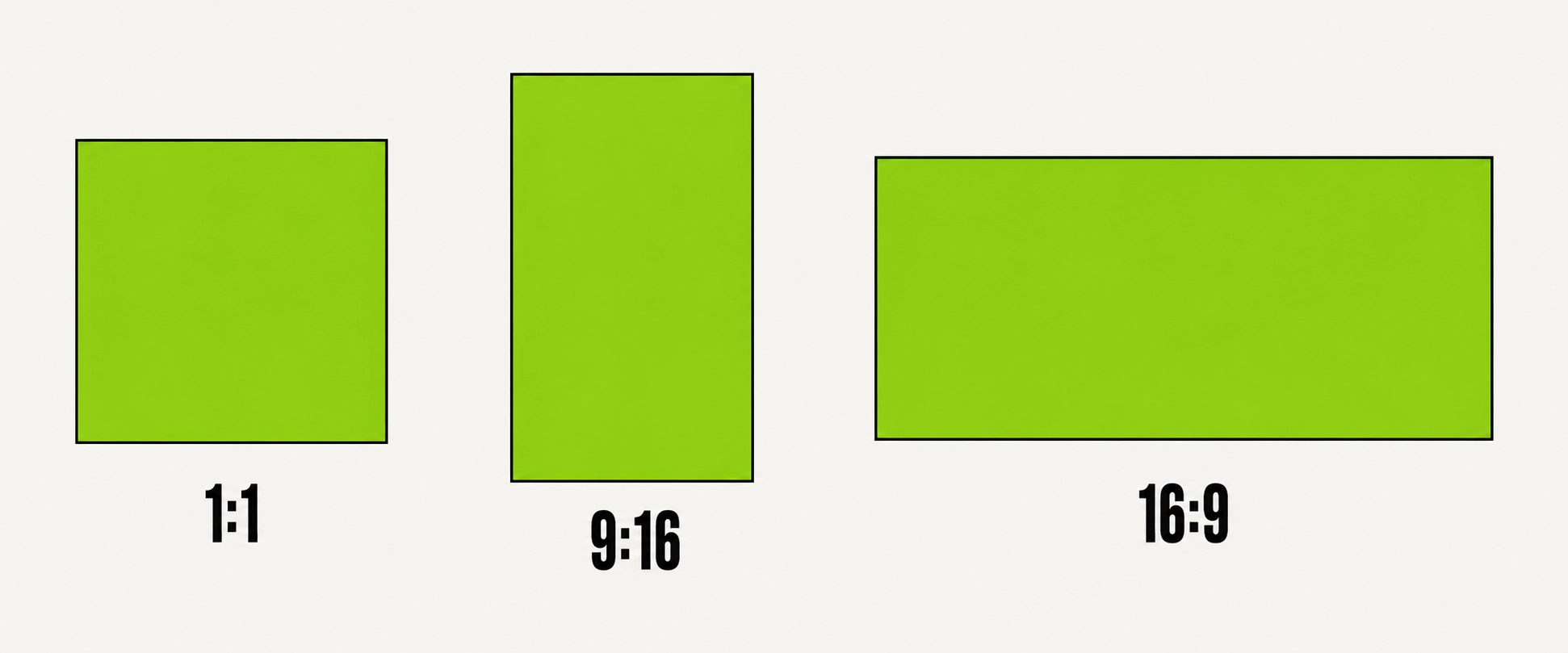
- Pick a shape. Use a square for a profile picture or cover, a tall shape for a story, and a wide shape for a banner.
- Preview the result at the size where it will be used. Zoom out and check that every word is still clear.
- Download your image, then save a second version if you need a different shape or file type.
If the preview looks crowded, shorten the phrase or reduce the blur rather than making the text smaller. The brat look depends on large, confident text with space around it. A phrase that fills the frame with a small margin usually reads better than a long line squeezed into the same space.
Text Styles and Presets
Most brat text generators offer a small set of colour and softness choices rather than a long list of fonts. That restraint is part of the style. The choices below cover the versions people use most often, and each one suits a different place or purpose.
Classic brat green
Black text on a brat green background is the most recognisable version. It is bold, high-contrast, and easy to spot in a feed. Use it when you want the image to be recognised at once, such as a cover-style image or a profile picture.
White text
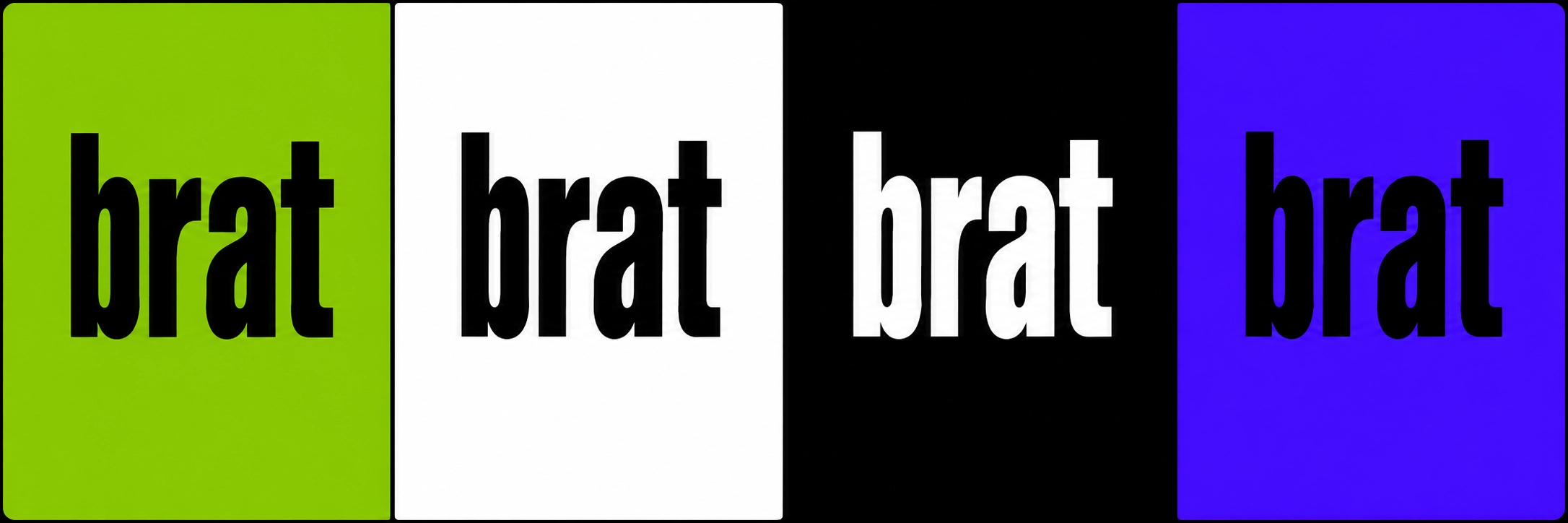
White text works well on a black or dark background, and it can feel calmer than the green version while keeping the same stretched lowercase shape. For more detail, see the brat generator white text page and the white text setup guide.
Custom colours
A custom colour pairing can work for a poster, an event image, or a personal project, but contrast matters more than novelty. Keep the text clearly darker or lighter than the background, and test the result on a phone screen before you share it. For the exact green used in the classic look, see the brat green hex code page.
Export Formats and Sizes
The best export depends on where the image will be used and whether it needs a transparent background. Choose the format first, then the shape, and keep a larger version if you may print the image or reuse it later.
- PNG: a good default for covers, profile pictures, and images with sharp edges. It keeps the text clear when the image is resized.
- JPEG: a smaller file that suits social posts and sharing in messages. It is less useful if you need transparency.
- WebP: a modern, compact option for web use when the platform you are posting to supports it.
- Square: the safest choice for album-style covers and profile pictures.
- Tall and wide shapes: use tall shapes for stories and wide shapes for banners, so the text is not cropped.
Always check the downloaded file before you post it. Open it at full size, look for cropped letters, and confirm the file type is the one you chose. If a platform compresses the image, a slightly larger export usually survives the process better than a very small one.
Tips for Better Brat Text
- Stay lowercase. Uppercase letters break the stretched, low-key feel of the style.
- Use few words. A short phrase stays readable after stretching and blur.
- Leave space around the text. A tight crop can cut letters and make the image feel cramped.
- Use a light blur. Start low, preview, and increase it only until the text looks soft rather than fuzzy.
- Test on a small screen. If the phrase is not clear as a thumbnail, shorten it or increase the contrast.
- Keep the wording your own. Short, original phrases work well and avoid copying someone else’s text.
For the lettering behind this look, including why there is no official font file to install, read the brat font page and the guide Brat Font: What It Is and How to Recreate It. The BratGen Free homepage also explains the free tool, the colour choices, and the export options in one place.
Brat Text Generator FAQ
Is a brat text generator free?
On BratGen Free, yes. The tool is free to use in your browser, with no sign-up and no watermark on the exported image.
Do I need to download a font?
No. The generator styles your text as an image in the browser, so there is no font file to download or install.
Why does my text look blurry?
A small amount of softness is deliberate and helps the text look low-resolution. If words are hard to read, lower the blur, shorten the phrase, or increase the contrast.
Which export format should I choose?
Choose PNG for covers and profile pictures, JPEG for easy sharing, and WebP for compact web use where it is supported.
Can I use white text instead of black text?
Yes, white text works well on a dark background. The white text pages on this site explain when it reads best and how to set it up.
Start with a short phrase, keep it lowercase, and let the colour, stretch, and softness do the work. A clear brat text generator result should be readable in a second, even as a small thumbnail.