Brat Font Generator — Download the Brat Font & Make Brat Text
There is no official brat font file to download or install. A brat font generator does not give you a TTF or OTF file: it styles your words to look like the brat album artwork — lowercase, stretched wide, and slightly blurred — and what you download is the finished text as an image. That image is what most people actually need, for a cover, a profile picture, or a social post.
Tip: press Enter in the text box for a new line. The brat look is stretched lowercase Arial with a slight blur, on brat green #8ACE00.
What Is the Brat Font Look?
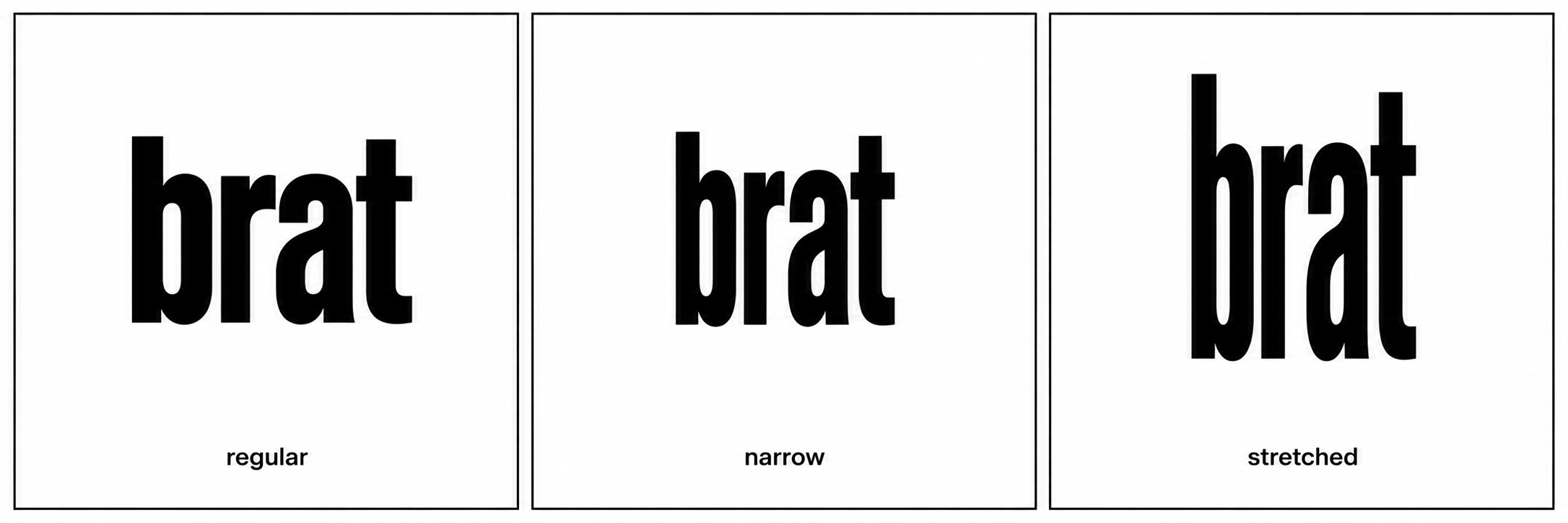
The brat look is not a special typeface. It is ordinary Arial, set in lowercase, stretched horizontally so the letters look wide and low, and softened with a small amount of blur. The text sits low in a square of bright brat green, with black letters. Because the ingredients are so plain, the result is easy to recognise and easy to recreate.
The brat font page explains the lettering in full, and the guide Brat Font: What It Is and How to Recreate It walks through each part of the style. This page focuses on the practical question: how to get the look, with or without a generator, and what you can honestly download.
- Lowercase letters only, with no capital at the start of the word.
- Arial, or Arial Narrow as a starting point, stretched wide.
- Black text on bright brat green for the classic look.
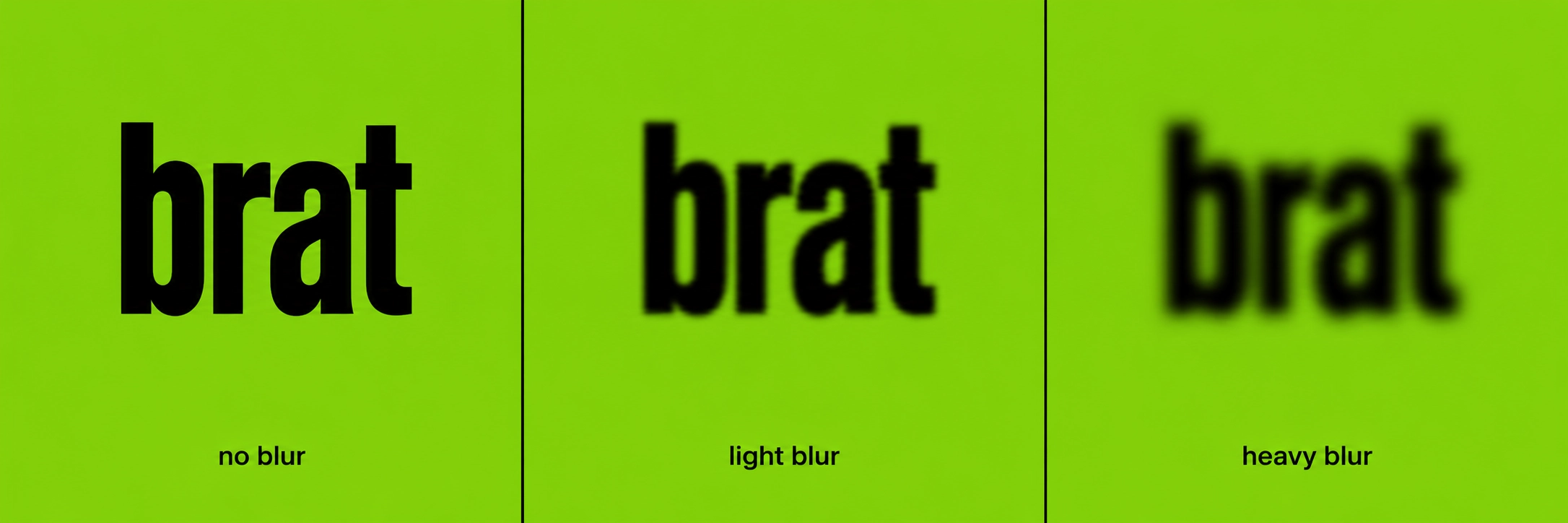
- A light blur, so the edges of the letters look soft.
- Text placed low in the square, with clear space above it.
How to Use a Brat Font Generator Step by Step
A generator is the fastest route, because the stretch and blur are already built in. You type, preview, and download, without adjusting a font in another app.
- Type your word in lowercase, and check the spelling before you style it.
- Choose brat green as the background and black as the text colour.
- Stretch the text wide, and move it low in the square.
- Add a small amount of blur, and preview the result at thumbnail size.
- Download the image as PNG for a cover, or JPEG or WebP if file size matters more.
- Keep the largest export, and make smaller copies from it for each platform.
The download is an image file, not a font file. You cannot install it and type with it in another app, but you can place the image in a post, a cover, or a profile picture. If you need editable text, recreate the look in a design app instead, using the steps below.
How to Recreate the Look in Canva and Photoshop
In Canva or Photoshop, start with Arial Narrow if it is available, or plain Arial if it is not. Type in lowercase, then stretch the text box horizontally until the letters look wide and low. The exact amount depends on the word, so judge it by eye rather than by a fixed number.
In Canva
- Add a text box, type in lowercase, and choose Arial Narrow or Arial.
- Drag the side handles outwards to stretch the text wide, keeping the height the same.
- Set the text to black, and the background to brat green. The brat green hex code page gives the exact value, and the colour format guide lists it in other formats.
- Move the text low in the square, add a slight blur effect if Canva offers one for the text, and export as PNG.
In Photoshop
- Type in lowercase with Arial Narrow, then use Free Transform to scale the width, holding the height steady.
- Fill the background with brat green, and keep the text black.
- Apply a small Gaussian Blur to the text layer only, and check the result at a small preview size.
- Save a copy as PNG, and keep the layered file if you may need to change the word later.
Common Mistakes to Avoid
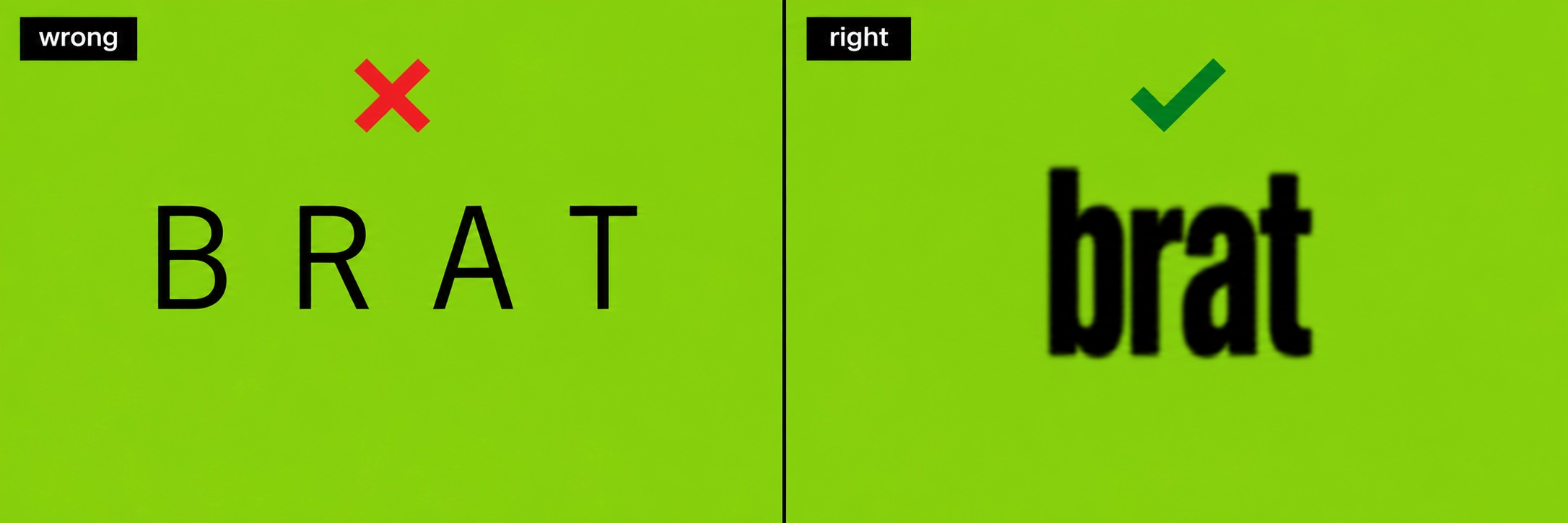
- Using capitals. The brat look is lowercase throughout, even at the start of a sentence.
- Stretching the text vertically as well as horizontally, which makes the letters tall instead of wide and low.
- Adding too much blur, so the word becomes hard to read at thumbnail size.
- Centring the text neatly, instead of placing it low in the square.
- Downloading a font file from an unknown site that claims to be the official brat font. No such official file exists, and such downloads are not needed to get the look.
For the white-text version of the same style, see the brat generator white text page and the white text setup guide. The lettering steps are the same; only the colours change.
Brat Font Generator FAQ
Can I download the brat font as a TTF or OTF file?
No. There is no official brat font file to download. The look is stretched lowercase Arial, and a generator gives you the styled text as an image, not as an installable font.
What font is used for the brat album cover?
The look is based on Arial, set in lowercase and stretched horizontally. Arial Narrow is a useful starting point in design apps, because it is already narrow and stretches cleanly.
What do I download from a brat font generator?
You download an image, usually PNG, JPEG, or WebP, showing your styled text. You can use it as a cover or profile picture, but you cannot install it as a font or edit the text afterwards.
Can I recreate the look in Canva?
Yes. Use Arial Narrow or Arial in lowercase, stretch the text box wide, set black text on brat green, and add a slight blur. Export the result as a PNG.
Is the brat font free to use?
The styling itself uses a common system typeface, Arial, and the generator on BratGen Free is free to use for making images. Do not pay for a supposed official brat font file, because no such file is offered officially.
Remember the honest answer: there is no font file to install, only a look to recreate. Use a generator for a quick image, or Arial Narrow plus a horizontal stretch when you need editable text.